WorkflowsWorkflow automation
Workflow automation: your rules, run every time.
When something happens, check a condition, then act, without anyone having to remember to. Draw the rule once on a canvas: an emergency repair reaches the property manager at 2am, a heading that hits 80% of its budget goes to an admin to decide, a new contractor appears in QuickBooks.
- StartsWhen something happens, on a schedule, or when a line is crossed
- DecidesConditions, filters, waits, loops and approvals
- DoesMessages, tasks, fire checks, repairs and QuickBooks
- AsksA named person, before anything that needs one
Illustrative run: the building and people are fictional.
Sheet 01The builder
Draw the rule. WiseBlock runs it.
A workflow is a trigger and the steps that follow it, laid out on a canvas: drag a step from the palette, connect it, and fill in what it should do in plain English. A condition sprouts a YES and a NO path, and you can see which way every case goes.
Steps can use what the record says, such as {{building_name}} or {{title}}, and what earlier steps produced, such as the reference of a task created two steps up.
Before a workflow goes live, Validate checks it: a condition with only one branch connected, or a step missing something it needs, is refused at publish rather than discovered at 2am.
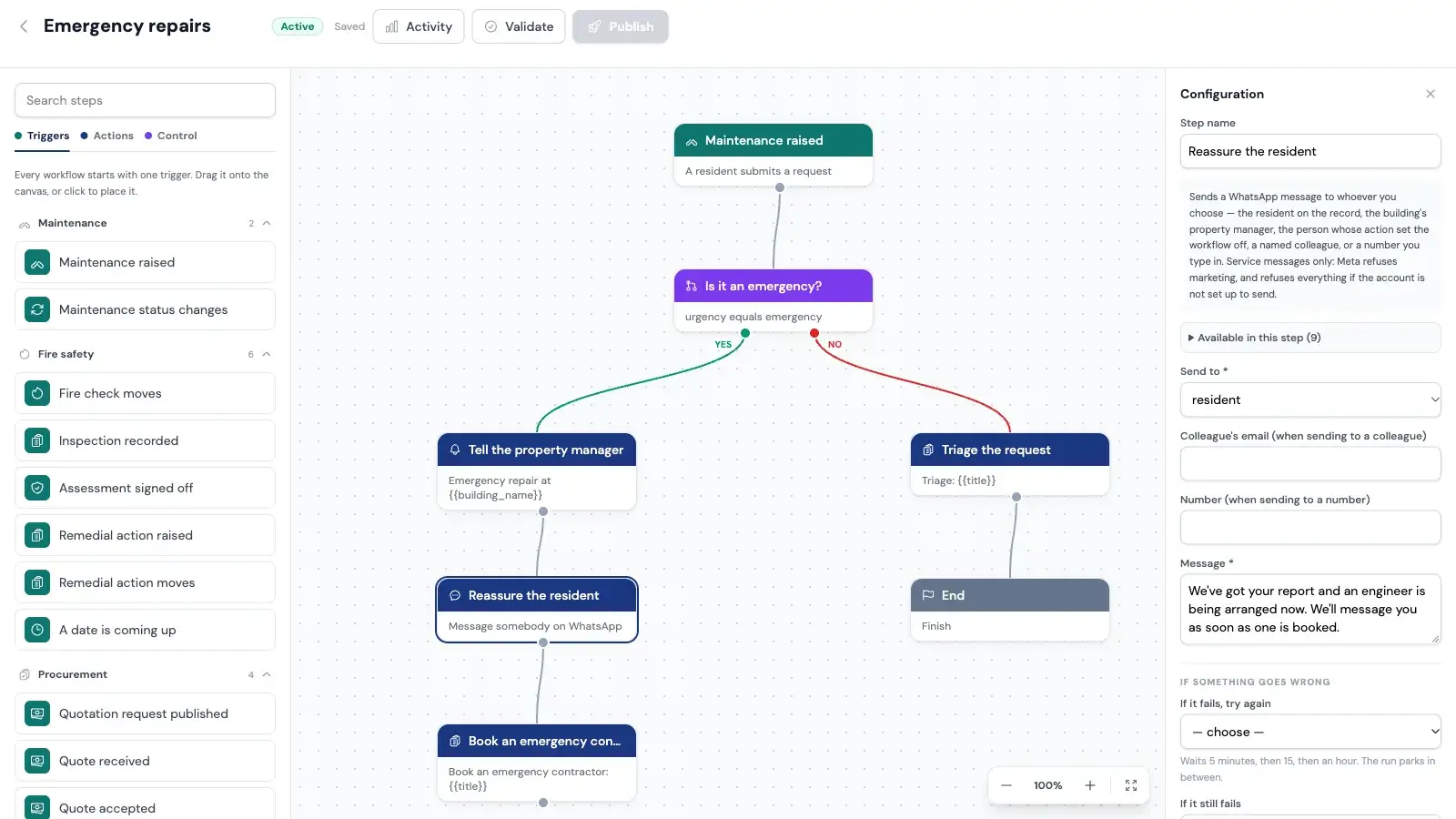
- A palette, grouped by area.
Maintenance, fire safety, procurement, money, people: every trigger and step is where you'd look for it.
- Branches you can see.
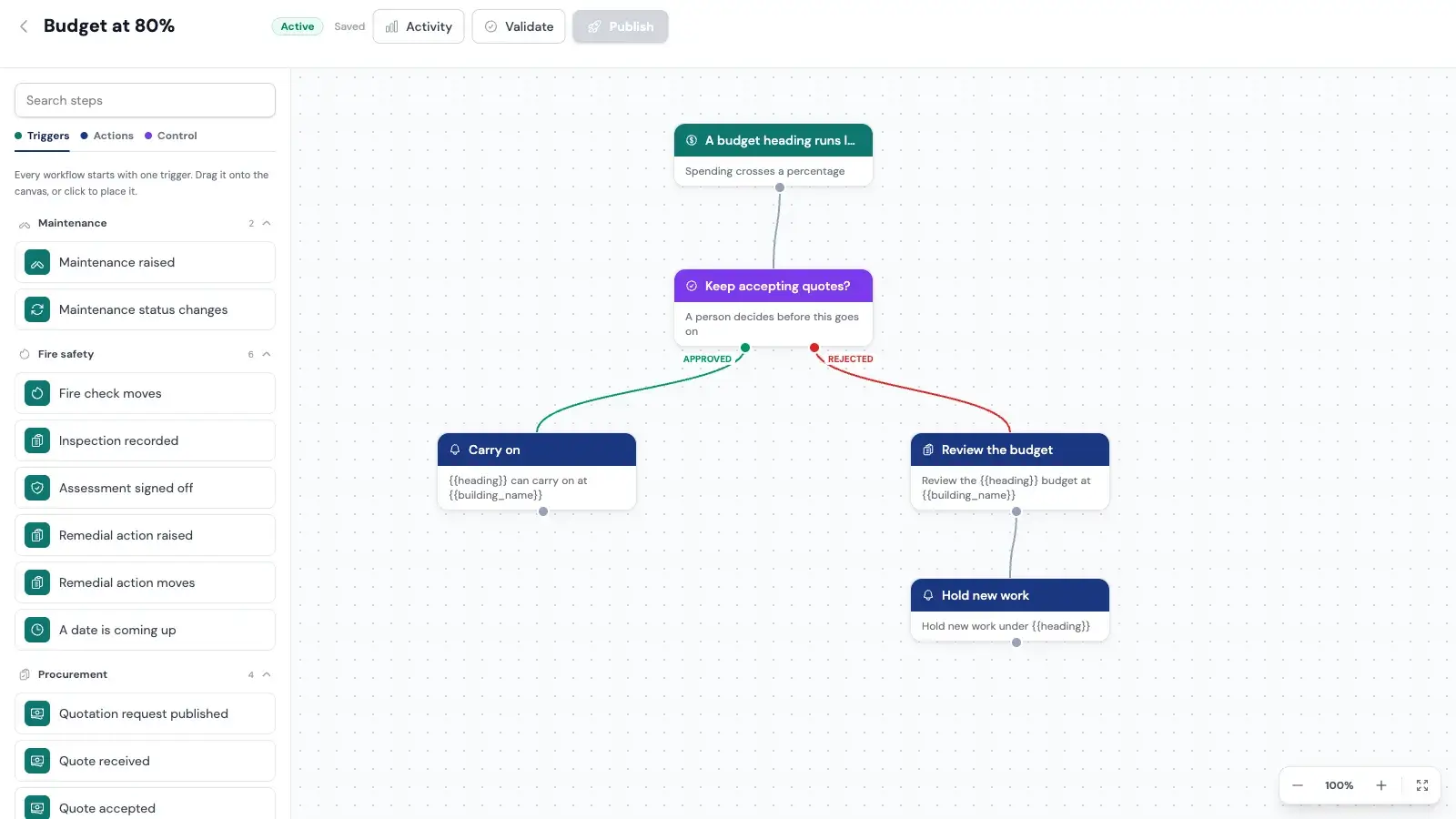
YES and NO, APPROVED and REJECTED, each drawn as its own path.
- Each step in plain English.
Who to send it to, what to say, which fields to read, set in a panel beside the canvas.
- What happens if it fails.
Try again later, stop, or take a separate path, chosen per step.
Sheet 02Triggers
Three ways a workflow starts.
Most automation only listens for events. Block management also runs on the calendar, and on lines that get crossed quietly with nothing to announce them.
-
Something happens
A repair is raised or moves status, a quote comes in or is accepted, a fire check or a remedial action moves, an inspection is recorded, a supplier invoice is approved, someone checks in at a building with an NFC tag, a resident or contractor is added, and more.
-
On a schedule
Daily, weekly or monthly, over every open repair, every resident or the residents in arrears, with one run for each.
-
A line is crossed
A budget heading reaches the percentage you set, or a fire check or remedial action comes within so many days of falling due, overdue ones included. Checked hourly, and it fires once when the line is crossed, so it chases rather than nags.
Sheet 03Steps
What a workflow can do, and to whom.
Messages are addressed, not just sent to "the resident": the resident on the record, the building's property manager, the person whose action started the run, a named colleague, a phone number, the admins or everyone. Anyone without an email address or number on file is reported and skipped; the run carries on.
In between, the control steps: a condition with YES and NO, a filter that quietly lets the rest go, a wait of minutes, hours or days, for each to repeat steps over a set, and an approval.
-
Tell people
An in-app notification, an email, a text or a WhatsApp.
-
Put work on the board
Create or update a task, add a calendar event, schedule a fire check, raise a remedial action.
-
Move repairs along
Set a request's status or urgency, add a note, assign it to the property manager.
-
Keep the books in step
Create, update or stand down a supplier in QuickBooks, and send an approved bill across.
-
Reach another system
Call a webhook with the record's details as JSON.
Sheet 04Approvals
A person decides where it matters.
An approval step pauses the run and asks the people you name: the admins, the building's property manager, the person who started it, or a colleague. They're told in the app the moment it's waiting, and only they, or an admin, can answer.
The run then carries on down APPROVED or REJECTED. There's no deadline that quietly turns into a yes: an approval that approves itself is a rubber stamp with extra steps.
Sheet 05Built not to surprise you
Automation you can leave running.
The rules that keep a workflow from becoming the thing your team has to watch.
-
A failure is handled where it happens
Each step can try again after 5 minutes, then 15, then an hour, without holding anything up while it waits. If it still fails, it stops, carries on, or takes a FAILED path you've drawn.
-
Editing doesn't touch runs in progress
Every run keeps its own copy of the workflow it started with, so changing a workflow can't break a run that's waiting on an approval.
-
No loops by accident
A workflow can't set itself off, and one workflow starting another is capped at three deep.
-
The user's action always comes first
Automation runs after the change is saved, and nothing it does can undo or block what the person did.
-
Every run on record
Activity shows each run, each step it took and what it did, including the ones a filter let go.
Sheet 06Examples
Workflows managing agents start with.
Each one is a trigger and a handful of steps, built from what's on the palette today.
Emergency repairs, day or night
Maintenance raised → is it an emergency? → tell the property manager, reassure the resident on WhatsApp, put an urgent task on the board.
A budget heading at 80%
A heading runs low → an admin approves or rejects → carry on, or review the budget and hold new work.
A fire check coming due
Due within 7 days → remind the inspector → if it's overdue, a task for the property manager.
A new contractor
Contractor added → create them as a supplier in QuickBooks, so the first bill has somewhere to go.
Questions
Workflows, answered.
Do we need a developer to build workflows?
No. Workflows are drawn on a canvas and every step is filled in with plain choices and text. The webhook step is there if you do have another system to reach.
How are workflows different from the AI agents?
An agent reads and drafts: it looks at a photo, an email or a statement and suggests what to do. A workflow follows the rule you drew, exactly, every time. They work together: a repair the Maintenance Surveyor helped draft is raised like any other, and the workflows listening for new repairs pick it up.
Can a workflow award a job or pay an invoice?
No. Workflows message people, create tasks, book checks, move repairs along and send approved bills to QuickBooks. Awarding work and approving invoices stay with people, and an approval step can put any decision in front of the right person.
What happens if a message can't be sent?
Anyone without the email address or number a step needs is reported in the run and skipped, and the run carries on. For other failures, each step can retry and then stop, continue or take a FAILED path.
Can another system start a workflow?
Not yet. Workflows start from events in WiseBlock, schedules and thresholds. Going the other way, a workflow can call another system's webhook.
Related
Next step
See your own rules run on your blocks.
A 30-minute demo on a portfolio like yours: fire safety, repairs, residents and service charges, with the agents switched on.